Sunday, 2 December 2012

MARL 2012 National Field Day 1-2 Dec, 2012

Participated in the MARL 2012 National Field Day which was held from 1-2 Dec, 2012. Went for the one at Tasik Taman Jaya, PJ. Forgotten to snap many photos during the first day, but here are those yg sempat kena snapped during the event using my smartphone. Update: Adding few more photos from Pang & Fahroe.

Enjoy the pics!


En Shahrul, expert panjat pokok ooo :)


Mana north yg betul nih?


Interview with RTM.


G5RV Jr + 40m & 80m mono dipoles.


2m antenna setup.


Pang with his homebrew portable QRP vertical antenna. Just spread the radials please.


Ceh, only trust made from junk ah? That little antenna analyser on Pang's hand can show the graph too ooo..


9W2RUT with his magnetic loop .. took him many hours before he satisfied with his work.


Taken from 9W2VXP post. Can you see that little 5W QRP radio? X1M that it. Heard 9W2EDU voice in one of the check net using this radio from Hulu Selangor. Hey, what is that blue thingy at the back? Battery pack?


9M2RZL - pemasangan magnetic loop.


9M2RZL's magnetic loop. Used 1W during one of the Field Day check net using FT-817ND with no tuner.


Ayoo, si CW man on the job again. Ada orang jadik peneman .. taken at around 3:45AM.


In the morning, 2nd day .. everything sudah kemas2 and ready for last check net before packing up everything. 9W2WF, 9M2YRS, 9W2RUT and 9W2FG dok busy cleaning up kat belakang.


Final photo before packing up.


Alamak ..hehe, banner tak sempat tempah, kita guna FleaMarket's KRAM le punye banner.. janji ada.. Those who were left just before we go back home, from the lower left: SWL (tak ingat nama), 9W2FG, 9W2RUT, 9M2AU, 9W2BBS .. upper from left 9W2WF, 9M2TPT, 9M2RS, 9W2NIK, 9M2YRS, 9M2PJU, 9W2ZLZ, 9M2RZL.


Ha, this one tak boleh ditinggalkan .. peneman setia dari day one until we left the place.

Overall, nice field day with quite number of participants not only those in Tasik Taman Jaya, PJ, but from all over the country. From Perlis up north, to Johor .. down south and Sarawak too.

Sunday, 2 September 2012

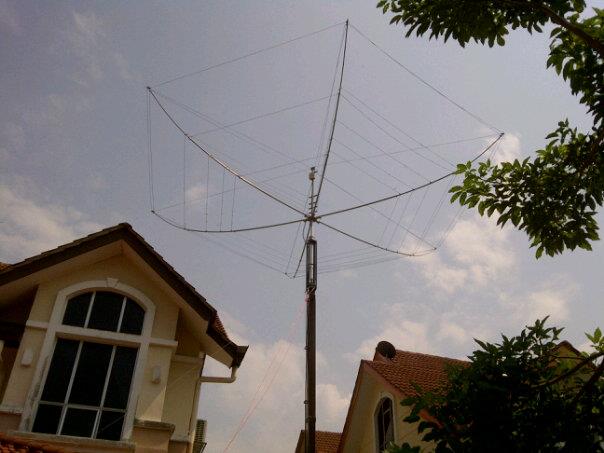
Antenna Party - Hexxbeam

Bought the hexxbeam from DX Engineering quite a while back and could only put it up today with the help of few of my friends. Thanks to the following (not following any orders):
  1. 9W2RUT (Weerut)
  2. 9M2PJU (PiJU)
  3. 9M2KRZ (Khairol)
  4. 9W2WF (Fadil) 
Without them, the antenna will probably still in the boxes and the mast will rotting and sold as scrap instead :)

Photos during the installation can be found in 9M2PJU blog here. Enjoy the photos:


Friday, 24 August 2012

New ASAA and new blogspot URL

I've passed my CW test last March 2012 and I'm now a proud owner of a Class A callsign, 9M2TPT.  My aim to upgrade myself before the fifth year is fulfilled. I'm now able to transmit on few more HF bands + higher power too. My Class B callsign seems to be valid until end of next year and I've no idea if I'm allowed to use both callsigns.


Anyway, I've renamed the original blogspot (9w2tpt.blogspot.com) into the current blogspot, so, if you've been referred to by search engine to the old blogspot URL, do switch the 'w' to 'm' and all will work just fine.

Friday, 17 August 2012

Customs tariff for transceiver (amateur)

For those who're thinking of importing transceivers for amateur radio usage, please use the following tariff to get tax exemption (8517.62.520). You do however need to get an Import Permit from SIRIM QAS.


Declaring your tariff wrongly and you'll be imposed with unnecessary sales tax (as what I did the last time I brought in my FT-920).

Wednesday, 11 July 2012

SAP CRM Business Partner - Middleware debug

Had a problem with debugging the BP middleware from CRM to ECC and found the following answer in SDN:

  • Put a break point in FM SMW3_MFLOW_UPDATETASKBDOC. 
  • Create a BP and before save type /h to activate debug, mark update debugging option. 
  • When stops in FM SMW3_MFLOW_UPDATETASKBDOC you must be sure to set header-dbgmode = 'X' this will make the bdoc stay stopped in SMW01. 
  • Go to SMW01 and type /h and process the bdoc. Put a break in FM CRM_UPLOAD_AFTER_MAP_HANDLER and be sure to change LV_SYNCHRON = 'X' this will allow you to connect in ECC. 
  • Put a break-point in the "CALL TRANSACTION" command. Change the mode of call transaction and you be able to debug XD* update.
NOTE: to check/resubmit BP from CRM to ECC, use txn: CRMM_BUPA_MAP


Wednesday, 25 January 2012

CUPS + HL-2140 (USB printer) + WZR-HP-G300NH + OpenWRT

Why running CUPS on the router?

I've had a small home server running Ubuntu to server the whole house, but it seems I'm the only one using it fully. I had my Brother HL-2140 connected to the server but since I've some spare room left in the router, why not run the print server on the router?

But why CUPS?

The other option I've is running non-spooling server, p910nd, but I believe I should make full use of the free space/memory on the router. If the router overloaded, I'll consider using p910nd later on.

What needs to be done to get CUPS running?

You need a capable router, WZR-HP-G300NH is one. It has 32MB flash ROM and 64MB RAM. I'm currently running OpenWrt Backfire 10.03.1-RC6 on it.

To install CUPS, just use LUCI to install the cups package.

How about getting the HL-2140 USB printer to work along?

There is nothing special, cups seems to have supported USB printer, so we shouldn't need to install the kmod-usb-printer package. It seems that the CUP's backend needs libusb, so, please install the libusb package.

just install the kmod-usb-printer package from LUCI, this will also install all the required packages such as kmod-usb-core, kmod-usb-ohci and kmod-usb2. If everything working, you'll see the following messages from dmesg or system log:

usblp0: USB Bidirectional printer dev 9 if 0 alt 0 proto 2 vid 0x04F9 pid 0x0033
usbcore: registered new interface driver usblp


There should be new device available: /dev/lp0


If everything works, you'll see your printer when you issue the following command:
root@OpenWrt:/mnt/share# /usr/lib/cups/backend/usb
DEBUG: list_devices
DEBUG: usb_find_busses=1
DEBUG: usb_find_devices=5
direct usb://Brother/HL-2140%20series?serial=F9J555425 "Brother HL-2140 series" "Brother HL-2140 series" "MFG:Brother;CMD:PJL,HBP;MDL:HL-2140 series;CLS:PRINTER;" ""


That is it?

Not so fast young man, there are few more things need to be done especially spooling. Since we've pretty much limited space, adding external USB storage is recommended. I've few USB sticks that I don't really use. So, I got myself a 4-port hub. Stick the 4GB USB stick, format it with ext4 and mount it. To get the USB storage working, I've installed kmod-usb-storage (I believe this will install few other packages too), kmod-fs-ext4 and e2fsprogs (to prepare the USB stick). Format the stick and mount it to /mnt/share and using LUCI, configure to make this mounted during bootup time.

The standard configuration file for CUPS has the USB pointing to /dev/usb/lp0 but OpenWRT has instead created /dev/lp0. So, edit /etc/cups/printers.conf and change that. Otherwise CUPS won't find the USB printer.

Here is my /etc/cups/cupsd.conf configuration file:
AccessLog syslog
ErrorLog syslog
LogLevel info
PageLog syslog
PreserveJobHistory No
PreserveJobFiles No
AutoPurgeJobs Yes
MaxJobs 25
MaxPrinterHistory 10
User root
Group root
RIPCache 512k
TempDir /mnt/share/cups
RequestRoot /mnt/share/cups
# Allow remote access
Port 631
Listen /var/run/cups/cups.sock
HostNameLookups Off
KeepAlive On
# Share local printers on the local network.
Browsing On
BrowseOrder allow,deny
BrowseRemoteProtocols
BrowseAddress @LOCAL
BrowseLocalProtocols CUPS
BrowseProtocols cups
< Location />
# Allow shared printing and remote administration...
Order allow,deny
Allow all
< /Location>
< Location /admin>
AuthType Basic
AuthClass System
# Allow remote administration...
Order allow,deny
Allow all
< /Location>
< Location /admin/conf>
AuthType Default
Require user @SYSTEM
# Allow remote access to the configuration files...
Order allow,deny
Allow all
< /Location>


NOTE: The code above won't allow me to have '< >' so, I put a space after the '<' .. So, edit and remove the space if you want to cut and paste my configuration. Yes, I'm allowing everyone to get access to CUPS configuration interface. You're free to edit it for sure. To add the printer, just go to http://your-router-ip-address:631 Go to administration, add printer, select the AppSocket/HP JetDirect option. Remember the output from /usr/lib/cups/backend/usb? Use the URI there and paste it into the "Connection" field. Example, for my printer, the URI returned by the backend command is: usb://Brother/HL-2140%20series?serial=F9J555425

Cut and paste the above into "Connection" field.

Somehow, we're not allowed by cups to have both User and Group to be the same, so to force the the backend to run as root, change the permission for /usr/lib/cups/backend/usb to 700.

Make sure cupsd running, so, fire it up in LUCI under System -> Startup, enable it and click start.

What else need to be done?

I had a problem when trying to print from my Mac, I'm getting an authentication error. Checking the syslog, there is this error: "Returning IPP client-error-not-authorized for Print-Job" and from my Mac, I'm getting "Authentication Required to Print" error. I didn't realised that I did not click on the "Share" option for the printer. So, if you're getting this error.. check if the printer has "Share This Printer" option ticked.

That is all .. have fun to get your printer + CUPS running on your router.

Thanks for the Openwrt wiki, somehow, my previous setup was working great until suddenly it won't print anything after I upgraded my router to the latest 10.03.01 backfire. So, please check for updated guide here:

http://wiki.openwrt.org/doc/howto/cups.server.

Sunday, 10 July 2011

Getting astrill vpn to work with OpenWRT (the hard way)!

I've just subscribed to Astrill vpn service with a thought that they've openwrt scripting works as per the old twitter post that saying they're working on it. But to my dismay, they still doesn't have one that work. I created a support ticket as suggested by a twitter reply from Astrill support but it came back saying that they only support DD-WRT, so, no openwrt, fonera or tomato support at the moment.

The reason why I'm sticking with OpenWRT on my WZR-HP-G300NH router is, I've got the VLAN port & tagging to work on this router with the latest OpenWRT trunk. And reading many DD-WRT related notes, they still couldn't get the VLAN port/tagging to work on the router, hence, I'm stuck.

So, what did I do today? Searching for more information on the net on how to get the openvpn client to work on OpenWRT. If you know the way, surely, it is not hard.. but it took me few hours to figure out what I need to get this thing working.

So, what you need to get astrillvpn working on your openwrt router (in my case the WZR-HP-G300NH)?

  1. Get the latest trunk release of OpenWRT (or probably this will work with the official release firmware too). 
  2. Install OpenVPN support, there is LUCI interface for OpenVPN configuration (at least on trunk release it has it).
  3. Download the Astrill's openvpn certificates from the member page. It should be under Servers -> OpenVPN Certificate generator.
  4. Unzip the certificates file, there will be load of them. If you're interested to use the Los Angeles server, there are five of them, choose one. There are 4 sections that will be of our interest from this configuration file. The OpenVPN and the 3 certificates.
  5. Copy and paste the certificates and copied them into /etc/openvpn directory of your router. I created three standard files as per the example I found in the /etc/config/openvpn, they are:
    • /etc/openvpn/ca.crt (copy the content from Astrill openvpn file, anything between the ca and /ca.
    • /etc/openvpn/client.crt (anything between the cert and /cert)
    • /etc/openvpn/client.key (anything between the key and /key)
  6. Done with the certificate, now, we need to configure the openvpn. Easiest is to edit it manually, here is the example I've:

    config 'openvpn' 'astrill_west_cost'
    option 'client' '1'
    option 'dev' 'tun'
    option 'proto' 'udp'
    option 'resolv_retry' 'infinite'
    option 'nobind' '1'
    option 'persist_key' '1'
    option 'persist_tun' '1'
    option 'comp_lzo' '1'
    option 'verb' '3'
    option 'enable' '1'
    option 'ca' '/etc/openvpn/ca.crt'
    option 'cert' '/etc/openvpn/client.crt'
    option 'key' '/etc/openvpn/client.key'
    option 'remote' 'XX.XX.XX.XX 8292'

    Replace the remote with the correct vpn server IP address and save the file.

  7. I've no idea if this is required, but during my first hour of testing, I could use ping to ping out outside IP/sitename but I couldn't use my browser to browse anything. So, I've added the following into my /etc/firewall.user. To tell you the truth, I've copied this from somewhere. I know nut about firewall & iptable etc. I'm not good at all these, at all.
    iptables -I FORWARD -o tun+ -j ACCEPT
    iptables -t nat -I POSTROUTING -o tun+ -j MASQUERADE

  8. Go to your LUCI interface. You'll find your configuration shown as the following:


  9. Click on the Start to start your vpn connection, and Stop to stop it. 
I believe that should be all about it on how to get Astrill's openvpn to work with OpenWRT. Good luck!

 Tips and tricks working with Form templates in S4 Public Cloud: Downloading XML In SD and some MM outputs, you could change the print queue...